01
Upload the image
A render, a listing photo or a site photo. Both tools live together under Edit & Enhance in the app.
Edit & Enhance
Paint over what you want gone and AI Eraser removes it. Paint over what you want changed, say what should be there, and Inpainting AI paints it in. On our two runs below, the rest of the render came back near-identical — and smaller (the captions give the sizes).
100 credits per run · paint the mask in your browser or upload one · New accounts start with 500 free credits.
Real Output
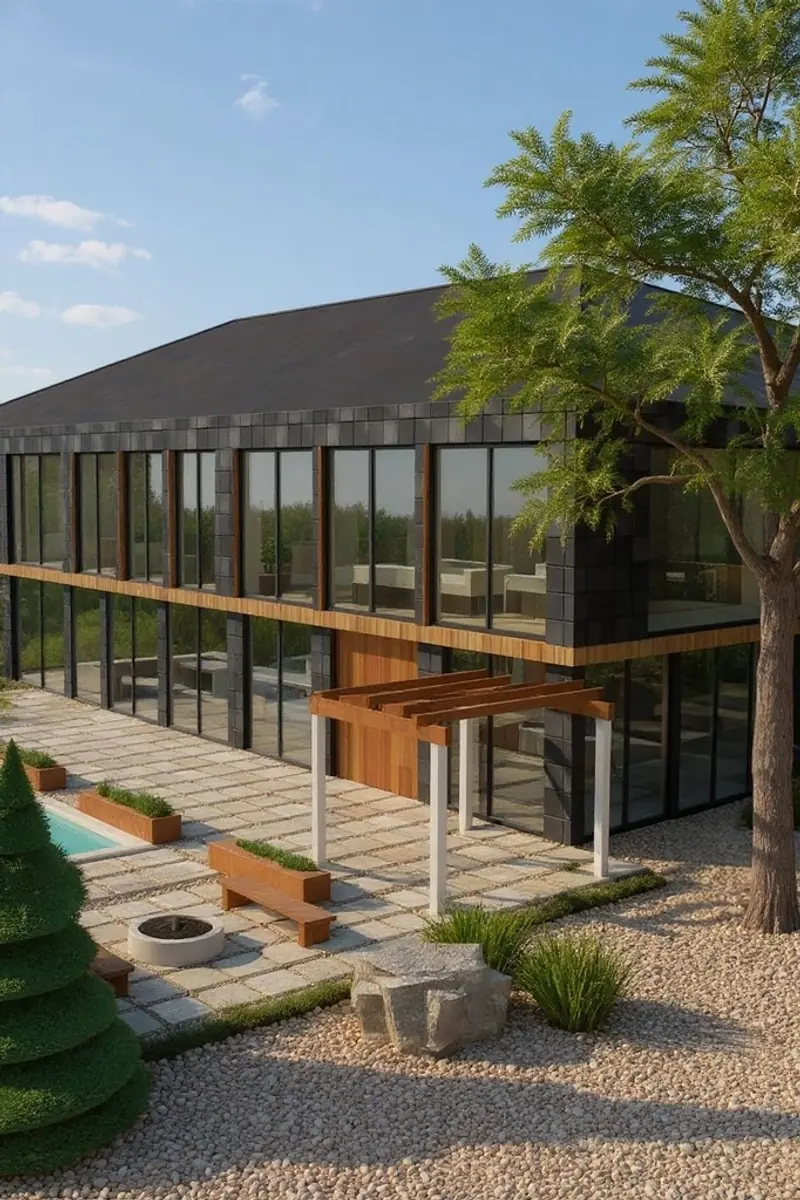
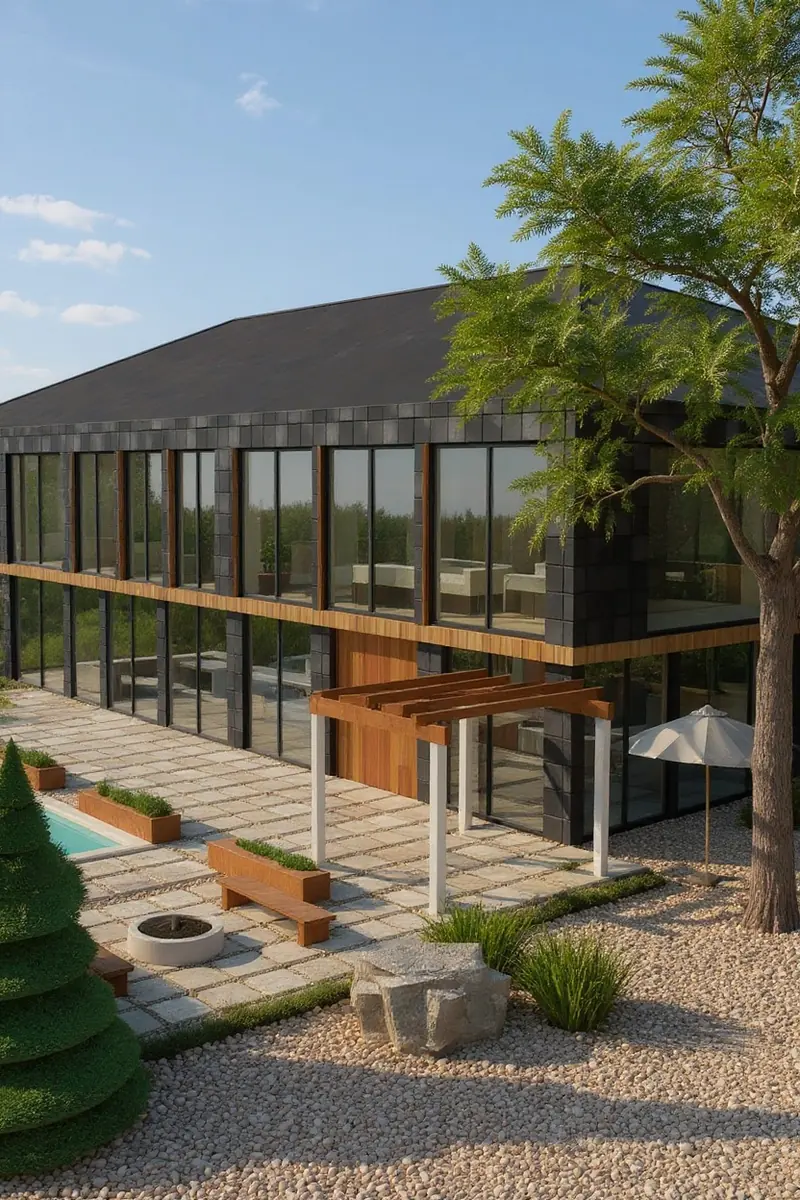
Top: AI Eraser with the patio umbrella painted out. Bottom: Inpainting AI with the boulder painted over and a prompt. Drag each handle to compare.
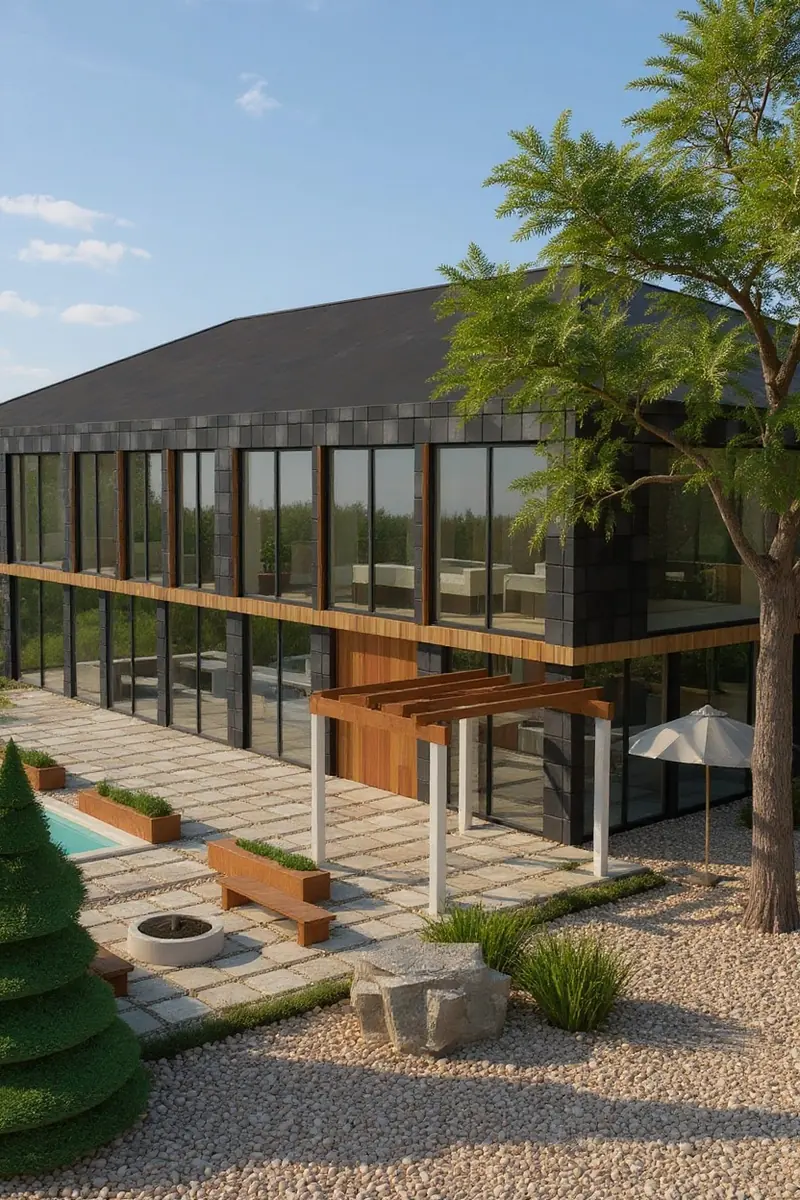
Made with AI Eraser · 100 credits · Oct 17, 2026
Before: A daytime render of our flagship demo house, rendered from its Design Studio model · Made with Sketch to Image · 100 credits.
One run, mask painted over the umbrella. Measured: 832 × 1,248 in, 682 × 1,024 out — the result came back smaller. Outside the mask the picture is near-identical (mean pixel difference 2.7 of 255 against the input scaled to the output's size); inside it the umbrella is gone and the window wall and gravel behind it are redrawn, not recovered.
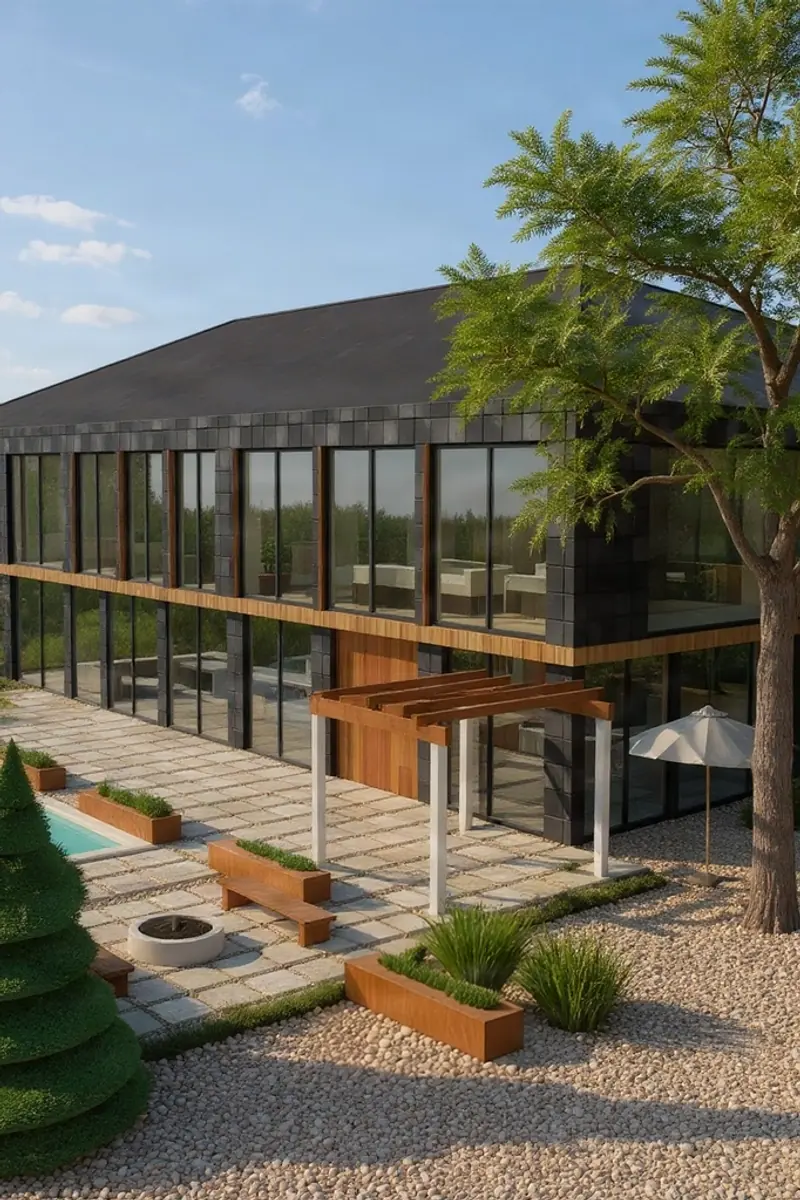
Made with Inpainting AI · 100 credits · Oct 17, 2026
Before: A daytime render of our flagship demo house, rendered from its Design Studio model · Made with Sketch to Image · 100 credits.
One run, mask painted over the boulder, with the prompt shown. Measured: 832 × 1,248 in, 682 × 1,024 out — the result came back smaller. Outside the mask the picture is near-identical (mean pixel difference 2.0 of 255 against the input scaled to the output's size); inside it the boulder became a cedar planter of grasses, and the clump of grass the mask overlapped was redrawn too.
How It Works
01
A render, a listing photo or a site photo. Both tools live together under Edit & Enhance in the app.
02
Paint over the area in your browser, or upload a mask image of your own — white is the part that changes.
03
AI Eraser needs no words (it has no prompt box): it removes what you painted. Inpainting AI takes an optional prompt, for example "Replace the blank area with a landscaped entry court and paving." 100 credits per run.
The Tools
100 credits
Remove unwanted objects using a base image plus an uploaded or painted mask. Use it for the thing the picture is better without — in our run on this page, a patio umbrella. What was behind it is invented to match the surroundings, not recovered.
100 credits
Repair or extend portions of an image using an uploaded or painted mask. Use it to swap one element while the rest of the image stays — in our run on this page, a boulder became a cedar planter.
Opposite brush
The reverse job: on Exterior AI, Interior AI, Landscape & Outdoor, paint what must NOT change before a full restyle, and Archify copies that area back from your original over the result.
Pricing
100 credits per run — the same as every other image tool, no separate checkout.
Starter
$29/mo launch price
3,000 credits every month — about 30 edits. Archify watermark included. Unused credits roll over while you stay subscribed.
Pro
$79/mo launch price
10,000 credits every month — about 100 edits. Watermark-free downloads and the video tools. Unused credits roll over while you stay subscribed.
Every plan includes the full tool set at each tool's own credit price. See current plans and one-time credit packs.
Honest Limits
In both of our runs on this page the output came back smaller than the image we uploaded (the captions give the measured sizes). If you need the pixels back for print, run the result through the 4K Upscaler afterwards.
The eraser fills the hole with something that fits the surroundings — it cannot know what was really there. Check windows, mullions and edges near the mask, where a redraw is easiest to spot.
Anything the mask touches can be redrawn, including the edge of a plant or a shadow next to the object; in our inpainting run, the clump of grass the mask overlapped was redrawn too. A shadow left outside the mask stays behind.
FAQ
AI Eraser removes what you paint over and fills the gap to match its surroundings — no prompt. Inpainting AI regenerates the painted area and can follow a prompt, so you can replace an object with something specific. 100 credits per run.
Only slightly. On our two runs on this page, everything outside the painted area measured near-identical to the input (the captions give the figures), while inside it the object was removed or replaced. The output was also smaller than the input, so check the size you need.
You can paint it in the browser on top of your image, or upload a mask image you made elsewhere: a black image, ideally the same size as the photo, with the area to change in white.
You can remove clutter or a temporary object, but an edited listing photo must not misrepresent the property: removing a permanent feature such as a power line or a neighbouring building can mislead buyers. Check your local MLS rules on altered photos before publishing.
100 credits per run. On Starter ($29/month launch price, 3,000 credits) that is about 30 runs a month, watermarked; on Pro ($79/month launch price, 10,000 credits) about 100, watermark-free.
New accounts start with 500 free credits. That is 5 runs. Can you use the output for client work? On paid plans, yes — downloads on Pro and Studio are watermark-free and can carry your own studio branding. Free-account output carries the Archify watermark and is licensed for evaluation. Check your local MLS rules before using AI-altered video in a listing; that disclosure is the agent's responsibility.
Keep Going
Put the pixels back after an edit: 2x or 4x the image size.
Lift materials and lighting across the whole render.
Restyle a whole room, with a brush for what must stay.
New accounts start with 500 free credits. No credit card required to start.