
Design Studio · Render rail

Same view, three options: exterior design options from one camera

Save a camera on your Design Studio house, pick 2–3 exterior material schemes, and the Render rail renders each one from that exact camera after a single confirmation. Put the options side by side for your client, add a day and dusk pair, and share a 3D link that carries the same saved views.

100 credits per render · 2–3 schemes per batch, one confirmation · The Design Studio and saved cameras are free · New accounts start with 500 free credits.

A Real Run

Halcyon Court, three ways, from one saved camera

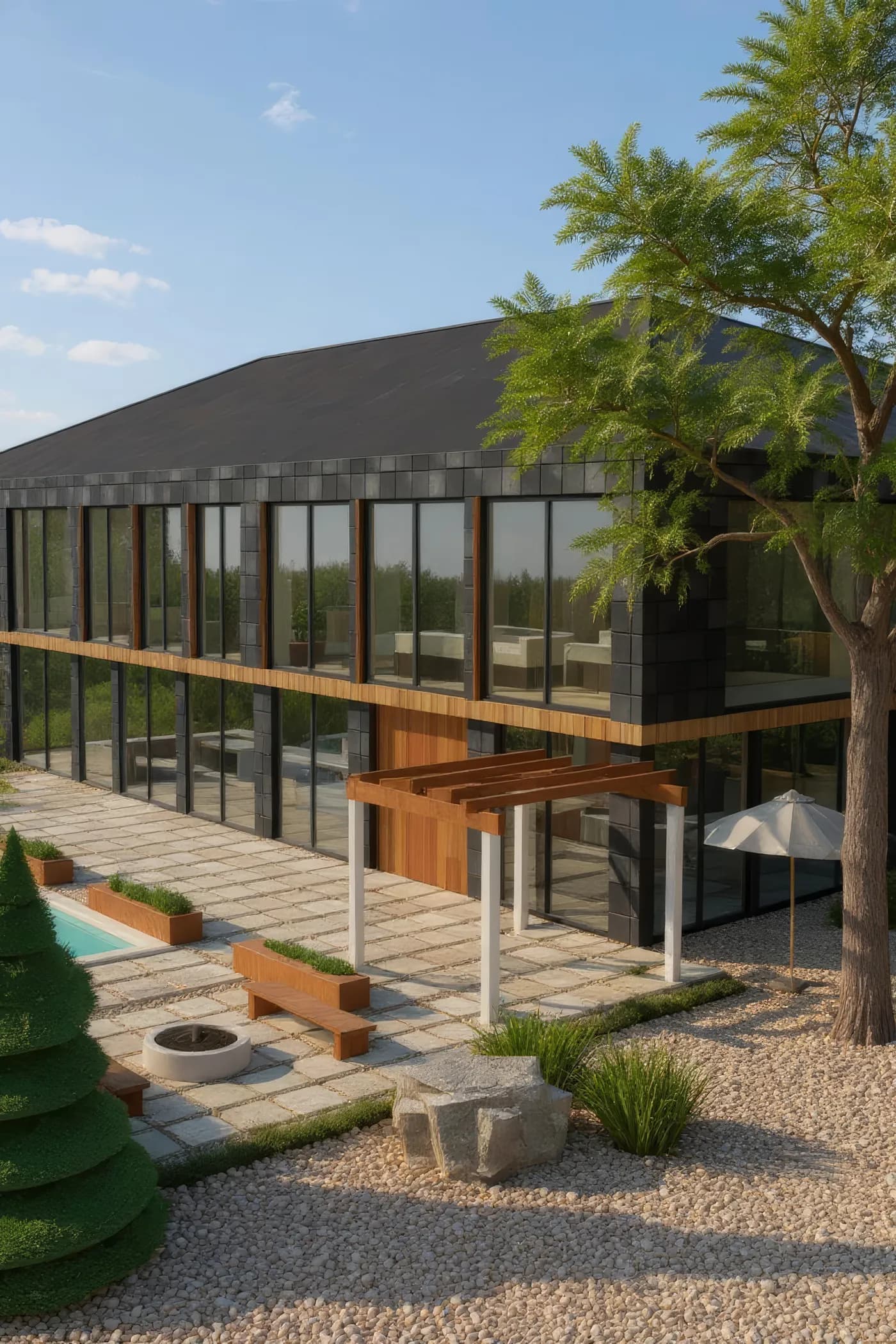
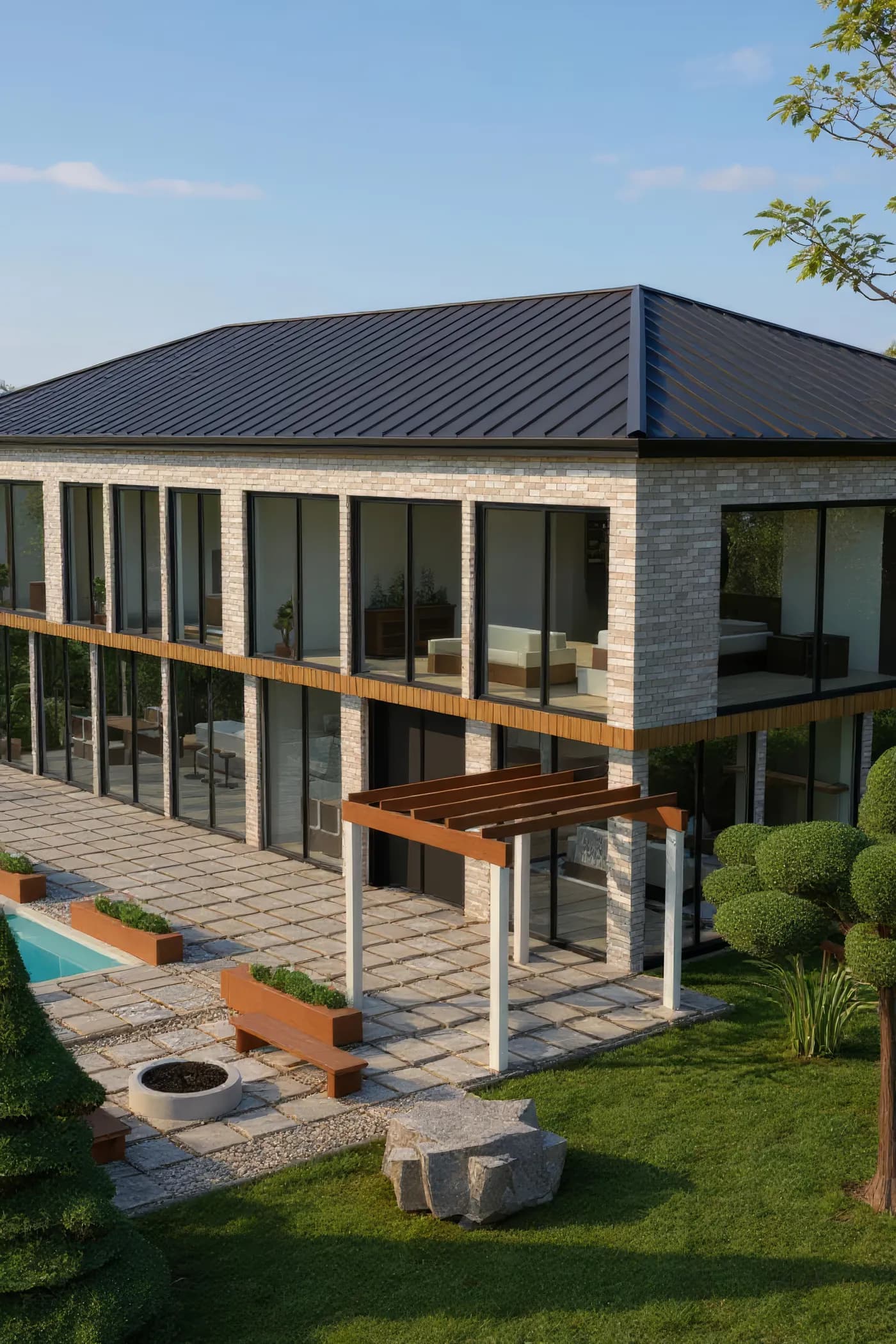
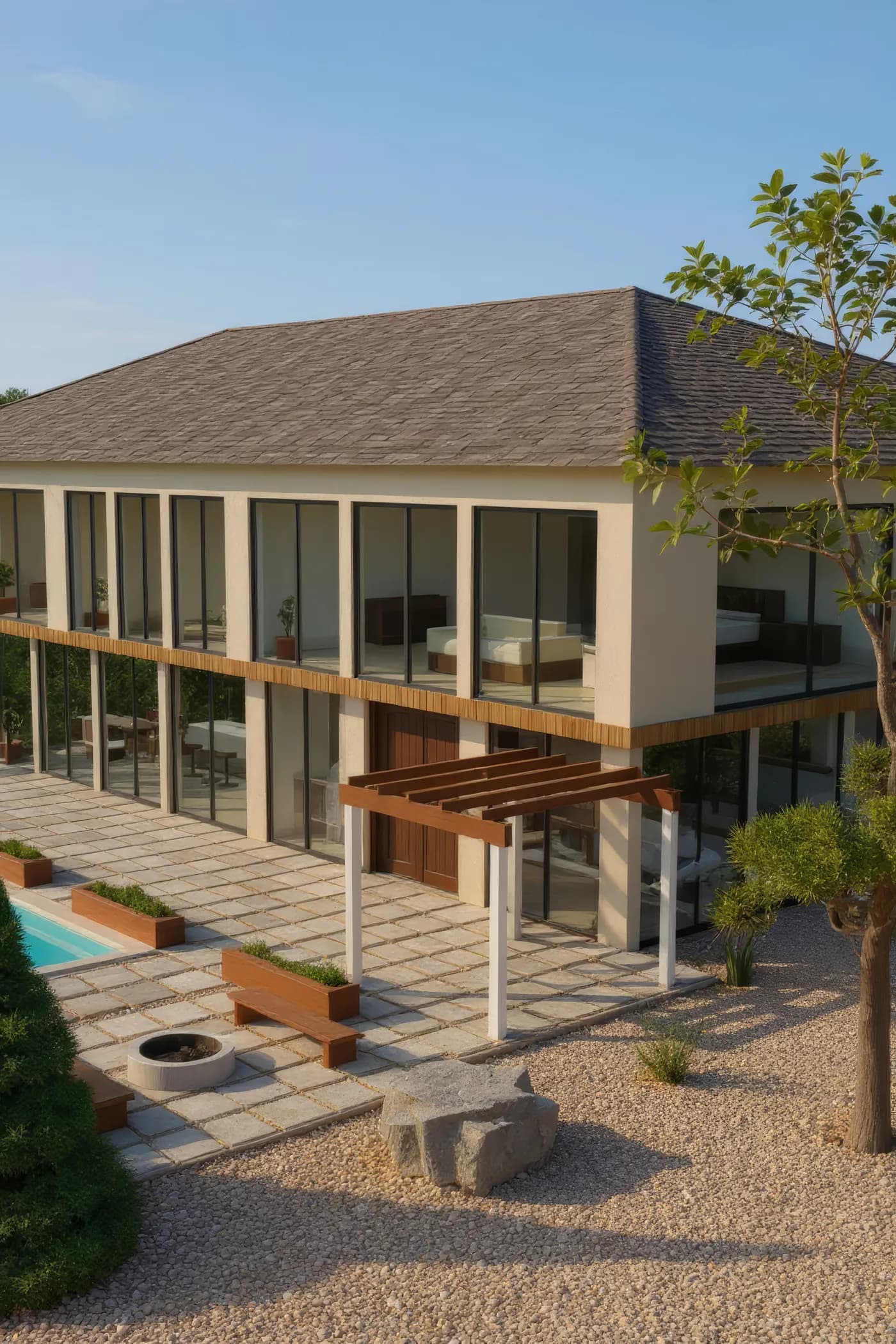
Real Render rail output from October 16, 2026: the house as designed (the day half of a Day + Night run), then two of the 6 built-in schemes — every one from the camera saved as “Garden hero”. The Options batch rendered three schemes; the third, Charcoal & cedar, came back with the camera pulled back and a different roof, so it is not shown — that is the drift described below. Nothing was retouched.

Swipe to compare

Halcyon Court's garden facade as designed — dark slate-clad walls, a cedar band and a dark roof — rendered in daylight from the saved Garden hero camera
As designedMade with Render rail · Day + Night · 100 creditsSharpened with one upscale pass · 4x · 100 credits
The same house from the same Garden hero camera with the Painted brick and black seam scheme — white painted brick walls and a black standing-seam roof
Painted brick & black seamMade with Render rail · Options · 100 creditsSharpened with one upscale pass · 4x · 100 credits
The same house from the same Garden hero camera with the Sand stucco scheme — sand-coloured stucco walls and a shingle roof
Sand stuccoMade with Render rail · Options · 100 creditsSharpened with one upscale pass · 4x · 100 credits

Same camera — not the same pixels

Each option is a separate render from the same camera. Archify checks the camera has not moved before every capture and spells the scheme out in the prompt, but the render service is an image model, so the massing can still drift between options: here the as-designed roof reads as one long plane while both schemes show a hip corner, the brick option grew a lawn, and the sand stucco scheme's bronze door didn't come through. Compare them as material directions, not as the drawing.
Open the house at this camera

The same model, live: the share link opens at the “Garden hero” camera these renders used. Orbit from there, or tap another saved camera on the view.

Open Halcyon Court in 3D

The stills on this page were sharpened with one upscale pass each (4x, 100 credits) and resized for the web; each figure's Archify job ids are in its markup.

How It Works

Camera, schemes, one confirmation, one edit

Options run on the same pipeline as a single Re-render — the same capture, the same geometry setting, the same price per render.

01 · Camera

Frame the view and save it

Orbit to the view your client should see and choose Cameras → Save camera in the 3D toolbar. The camera is stored with the design, so it comes back to the exact same pose after a reload.

02 · Schemes

Pick 2–3 schemes

Open Render → Options, choose the render style (Photoreal day, Twilight, Soft overcast, Night) and tick the schemes to compare. Each scheme sets the exterior walls, roof, trim and front door from the material library.

03 · Confirm once

One confirmation, then one render at a time

The rail names the count and the total — “3 renders · 3×100 credits” — before anything is charged. It then locks the editor, checks the camera has not moved before every capture, and submits the renders one after another.

04 · Choose

Use the winner

“Use this scheme” applies the scheme's materials to your model as one edit, and one undo puts the old ones back. Every render also lands in History and in your active workspace.

Built-in Schemes

6 exterior schemes to compare

Each scheme is four materials from the Design Studio library — exterior walls, roof, trim and front door. The render prompt is written from those same material names, so what the model wears and what the render is asked for come from one list.

  • Painted brick & black seam

    Shown above

    Modern farmhouse: painted brick, black standing-seam roof, black door.

  • Warm stucco & terracotta

    Mediterranean: warm white stucco, terracotta tile, walnut door.

  • Charcoal & cedar

    Contemporary: charcoal siding, charcoal shingles, cedar trim and door.

  • Red brick & navy

    Traditional: red brick, weathered shingles, white trim, navy door.

  • Sand stucco & bronze

    Shown above

    Desert modern: sand stucco, weathered shingles, greige trim, bronze door.

  • Sage & whitewash

    Cottage: sage paint, weathered shingles, white trim, whitewashed door.

Time of Day

The same house at day and at dusk

The day render above, then Day to Dusk run on that same image, then the free reveal clip that fades from one to the other.

Halcyon Court's garden facade as designed — dark slate-clad walls, a cedar band and a dark roof — rendered in daylight from the saved Garden hero camera
DayMade with Render rail · Day + Night · 100 creditsSharpened with one upscale pass · 4x · 100 credits
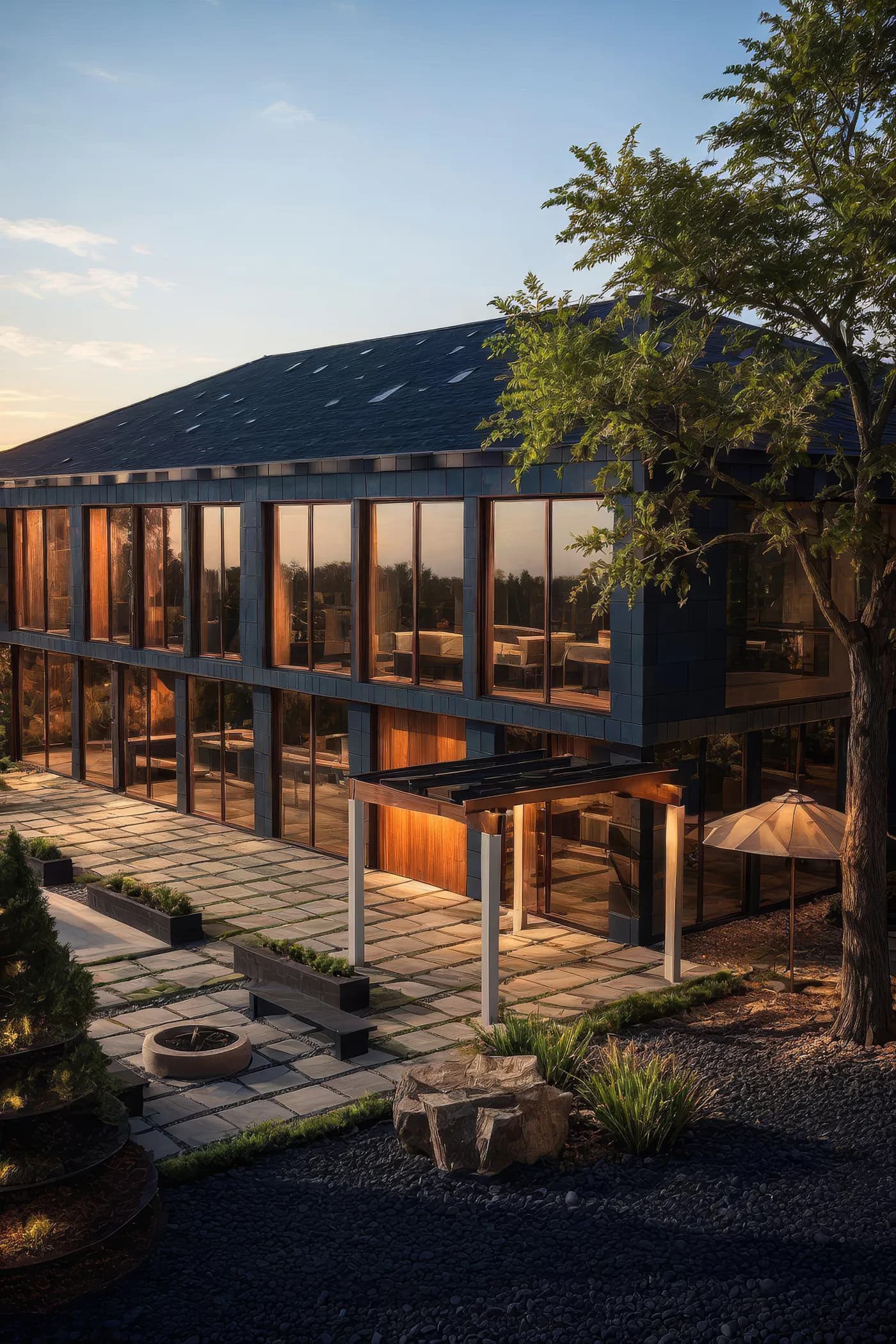
The as-designed render turned to dusk by the Day to Dusk tool — warm light in the windows, a blue dusk sky over a warm horizon, same house and camera as the day render
DuskMade with Day to Dusk · 100 creditsSharpened with one upscale pass · 4x · 100 credits
Day → dusk revealMade with Before/After Reveal · free

How this pair was made

The dusk is Day to Dusk (100 credits) run on the day render itself — an edit of that one image, so the two line up and the reveal can dissolve between them. It is dusk, not night: the sky keeps some blue, and small things shift in the edit — the planters darken and the pool at the left edge turns pale. The reveal clip is free.

Day + Night in the Render rail

One capture in daylight and one with the evening lights on, from the same saved camera, rendered with the Photoreal day and Night styles — “2 renders · 2×100 credits”. The rail also offers a free day → night reveal clip, but the two are separate renders, so its fade can show both houses at once; for a clean change, hard-cut between the stills. On this house the Night style also painted a sky artefact on every roll, which is why the pair above is day and dusk. A single Re-render can use any of the rail's styles: Photoreal day, Twilight, Soft overcast, Night.

Saved Cameras

Keep the views your client cares about

Saved cameras live in the design itself, so the view you rendered last week is the view you render after the next edit — and the view your client opens.

Save, recall, rename, delete

Up to 50 saved cameras per design, in the Cameras menu of the 3D toolbar. Recalling one puts the view back exactly, and saving or deleting one is an ordinary edit you can undo.

Render every saved camera

Render → Cameras renders each saved camera one after another after a single confirmation, at 100 credits a camera, then puts your own view back. A camera that cannot be restored exactly is skipped with its reason, and the others still render.

Your client gets the same views

Share the design and the 3D link carries your saved cameras as buttons on the view — your client taps one and lands on the exact angle the render was made from. No account needed to open it.

Honest Limits

What options mode does — and doesn't

Options are material directions, not the drawing

The render service is an image model. Archify proves the camera is still and spells the scheme out in the prompt, which is designed to read as one house in different cladding — but the massing, the roof line and the landscaping can still drift from one option to the next. On our own acceptance run on a plainer test house, all three options came back as different house shapes — expect to re-run an option, and judge them as material directions.

The rail's styles are written for exteriors

Every Render rail style describes sky, landscaping and facade light, so an interior camera can come back as an outdoor scene. For interiors, walk the model in 3D instead.

Separate renders don't line up pixel for pixel

Options and the Day + Night pair are separate renders from the same camera — each its own capture. Show them side by side or hard-cut between them; only an edit of one image — like the dusk above — can dissolve cleanly.

Pricing

What design options cost on Archify

Every option is one render at 100 credits, so a 3-option batch is 300 credits — confirmed before anything is charged. Counted below in batches of 3 options.

Starter

$29/mo launch price

3,000 credits every month — about 10 batches of 3 options. Archify watermark included. Unused credits roll over while you stay subscribed.

Pro

$79/mo launch price

10,000 credits every month — about 33 batches of 3 options. Watermark-free downloads and the video tools. Unused credits roll over while you stay subscribed.

The Design Studio, saved cameras and the 3D share link are free on every plan; Day to Dusk is 100 credits and the reveal clip is free. See current plans and one-time credit packs.

FAQ

Design options, answered

What is design options rendering?+

Showing a client two or more versions of the same design — here, the same house in different exterior materials — rendered from the same viewpoint, so the only thing that changes is the choice being made. In Archify you save a camera on your Design Studio model and the Render rail's Options mode renders 2–3 exterior schemes from it in one confirmed batch.

How much does it cost?+

Each option is one render at 100 credits, so a 3-option batch is 300 credits and Day + Night is 200 — each confirmed once before anything is charged. A Day to Dusk edit is 100 credits and the reveal clip is free. The Design Studio, saved cameras and the share link cost nothing. Starter ($29/mo launch price, 3,000 credits) covers about 10 batches of 3 options a month with the Archify watermark; Pro ($79/mo launch price, 10,000 credits) about 33, watermark-free.

Will the options look like the same house?+

Designed to, not guaranteed to. Every option starts from one picture of your model taken from one proven-still camera, at the strongest geometry setting the render service accepts, with the scheme's materials spelled out in the prompt. It is still an image model, so the massing and landscaping can drift between options — on the run above, the as-designed roof reads as one long plane while both schemes show a hip corner. Compare them as material directions, and use the model itself for anything dimensional.

How does my client see the options?+

Every render lands in History and in your active workspace. Share that workspace as a Client Room and your client can approve an option or ask for changes without an account; share the design itself and the 3D link carries your saved cameras, so they can jump to the exact view each render was made from.

Can I use the renders and the reveal clip in client work?+

Free and Starter output carries the Archify mark; watermark-free use starts at Pro, and trial output is marked until the first payment. On paid plans, yes — downloads on Pro and Studio are watermark-free and can carry your own studio branding. Free-account output carries the Archify watermark and is licensed for evaluation. Check your local MLS rules before using AI-altered video in a listing; that disclosure is the agent's responsibility.

Why does the time-of-day pair show dusk, not night?+

Because it lines up. The dusk is Day to Dusk run on the day render itself — an edit of that one image — so the two match and the reveal can dissolve from one to the other. Day + Night in the Render rail makes two separate renders from the same camera (Photoreal day and Night, with the evening lights on for the night capture); those don't line up pixel for pixel, so cut between them instead. The Day to Dusk edit stays at dusk — the sky keeps some blue — and small things can shift in it, like planter colours.

I don't have a 3D model. Can I compare options from a photo?+

Yes, as separate runs: Exterior AI restyles a photo or a render, and image tools in the AI Workspace can run the same inputs as a few variants in a row after one confirmation. Without a model there is no saved camera and no scheme to apply, so each run is a fresh generation and the results differ more than options from a model do. Building the house in the Design Studio is free.

Is there a free way to try it?+

New accounts start with 500 free credits. That covers one 3-option batch on your own model, with the Archify watermark and the evaluation licence that free output carries. The Design Studio and saved cameras are free on every plan.

Keep Going

Related tools and guides

Render your first set of options

New accounts start with 500 free credits. No credit card required to start.

Start Free