
01
Upload the room
A phone photo of a real room, a listing photo, or a render of an interior you are designing. Interior AI is built to restyle a room that already has furniture.
Render Studio
Upload a photo or render of a furnished room, pick one of 24 styles and 22 room types, write what you want, and Archify restyles the room — with a brush for the parts that must come back as photographed.
100 credits per run · 528 style and room combinations · New accounts start with 500 free credits.
Real Output
One Interior AI run in Japandi style on a living room. Drag the handle to compare.
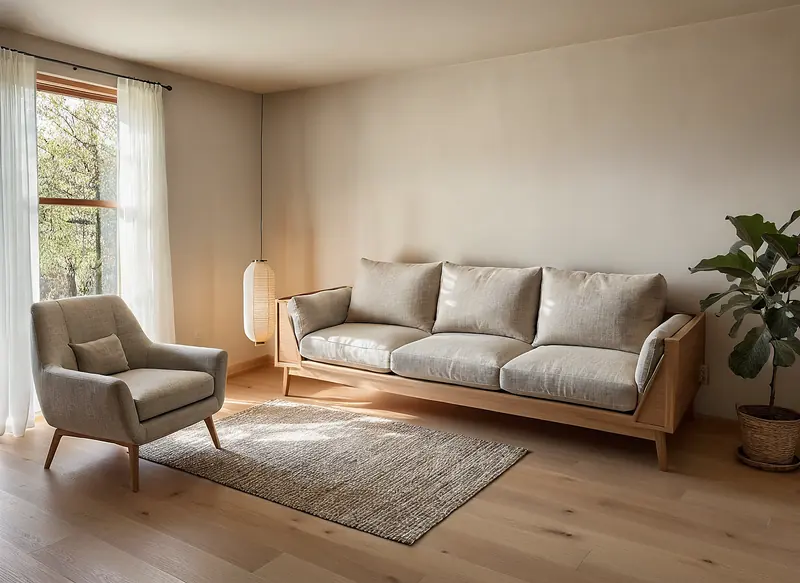
Made with Interior AI · 100 credits · Oct 16, 2026
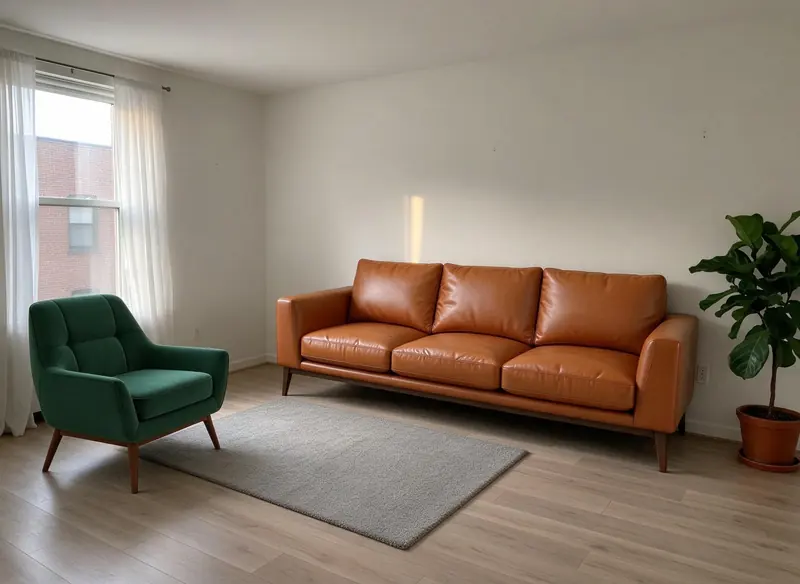
Before: A living room made earlier (a green armchair and a tan leather sofa placed in a demo room photo) · Made with Place in Room · 25 credits.
Japandi style, Structure Lock on. The room's shape, the window's position and the furniture layout stay; the furniture, rug and floor are restyled, the window frame turned to timber, the view outside changed from a brick building to trees, the pot became a basket, and a paper lantern was added.
How It Works
01
A phone photo of a real room, a listing photo, or a render of an interior you are designing. Interior AI is built to restyle a room that already has furniture.
02
24 styles and 22 room types (Modern and Living Room are the defaults). The brief is required — for example "Warm oak joinery, indirect lighting, soft beige palette, premium furniture."
03
Tick Structure Lock to tell the model to hold the walls, windows and doors, tick Maintain colors to hold the existing paint and floor colour, or paint over anything that must come back from your photo with the Keep this area brush. Each run is 100 credits.
Controls
Every style in the picker carries its own description of materials and palette, which Archify adds to your brief before the run — so choosing Japandi over Industrial changes the room, not just a label.
Two checkboxes that become instructions in the prompt: Structure Lock is designed to keep every wall, opening and proportion as shown, and Maintain colors is designed to keep the photo's own colours. They are strong directions to the model, not a pixel lock — check the result.
Paint over the parts that must not change — a fireplace, a built-in, a window view. When the render comes back, Archify copies the painted area from your original photo back over the result (scaled to the result's size, with a softened edge), so those areas are your photo, not a redraw. The same brush is on Exterior AI, Interior AI, Landscape & Outdoor.
Options
Read from the tool itself — every option listed here is live in the picker.
24 styles × 22 room types = 528 combinations, each with your own brief on top.
Pricing
Interior AI is 100 credits per run, the same price as every other image tool.
Starter
$29/mo launch price
3,000 credits every month — about 30 runs. Archify watermark included. Unused credits roll over while you stay subscribed.
Pro
$79/mo launch price
10,000 credits every month — about 100 runs. Watermark-free downloads and the video tools. Unused credits roll over while you stay subscribed.
Every plan includes the full tool set at each tool's own credit price. See current plans and one-time credit packs.
Honest Limits
In our own run on this page the furniture was restyled as asked, but the floor was refinished even though the brief said to keep it, the window frame turned to timber, the view outside changed from a brick building to trees, and the plant pot became a basket. Use Structure Lock and the Keep this area brush for anything that has to stay.
The furniture and finishes are the model's invention in the chosen style — they are not real products you can order. To show a client a specific sofa from a real store in their room, use Place in Room instead.
Each run restyles one image. There is no floor plan, no 3D room and no measurements behind it — for a measured, walkable interior, design the room in the free Design Studio.
FAQ
It takes a photo or render of a room and generates a restyled version of the same room: new furniture, finishes and palette in the style you choose. Archify's Interior AI does this from one image, a style (24 to choose from), a room type (22) and a short written brief — 528 style and room combinations before you write a word.
It is designed to, when you tick Structure Lock: that adds an instruction to keep every wall, opening and proportion as shown. It is a strong direction, not a guarantee — in our own run the room's shape, window position and furniture layout held while the floor, the window frame and the view outside changed. For anything that must stay, paint it with the Keep this area brush: that area is copied back from your original photo after the render.
Tick Maintain colors: it tells the model to keep the input's exact colours. Like Structure Lock, it is an instruction to the model, so check the result; the Keep this area brush is the way to keep a specific floor or wall as photographed — it copies that area back from your photo.
Each run is 100 credits. On Starter ($29/month launch price, 3,000 credits) that is about 30 runs a month with the Archify watermark; on Pro ($79/month launch price, 10,000 credits) about 100, watermark-free.
New accounts start with 500 free credits. That is 5 runs. Can you use the output for client work? On paid plans, yes — downloads on Pro and Studio are watermark-free and can carry your own studio branding. Free-account output carries the Archify watermark and is licensed for evaluation. Check your local MLS rules before using AI-altered video in a listing; that disclosure is the agent's responsibility.
Keep Going
Place real products from any store into a room photo.
Set the direction first: a mood board and a materials & finishes list to source it.
Try a different lighting mood on an interior photo — check colours and the floor, which can change too.
Remove or replace one object without restyling the room.
New accounts start with 500 free credits. No credit card required to start.